Walkthrough · Updated November 25, 2026
Welcome to Your Creators Dept Partner Portal
Your Client Partner Portal is where everything we create together lives: your photos and videos, your requests, shared docs, brand files and agreements. This walkthrough takes about three minutes. Sections 1 to 6 cover the everyday steps; the optional ones after them cover things you'll only do now and then.
Who can see what. This guide is open to anyone with the link, with no sign-in needed, and you can print it or download it as a PDF. It uses a made-up business (Golden Hour Coffee Co.), so nothing private is in it. Your portal is private: only people we've invited, at the email address we have for them, can sign in, and they only ever see your business.
01 Open your invitation
We'll send you an email titled Welcome to the new Creators Dept: your Client Partner Portal.
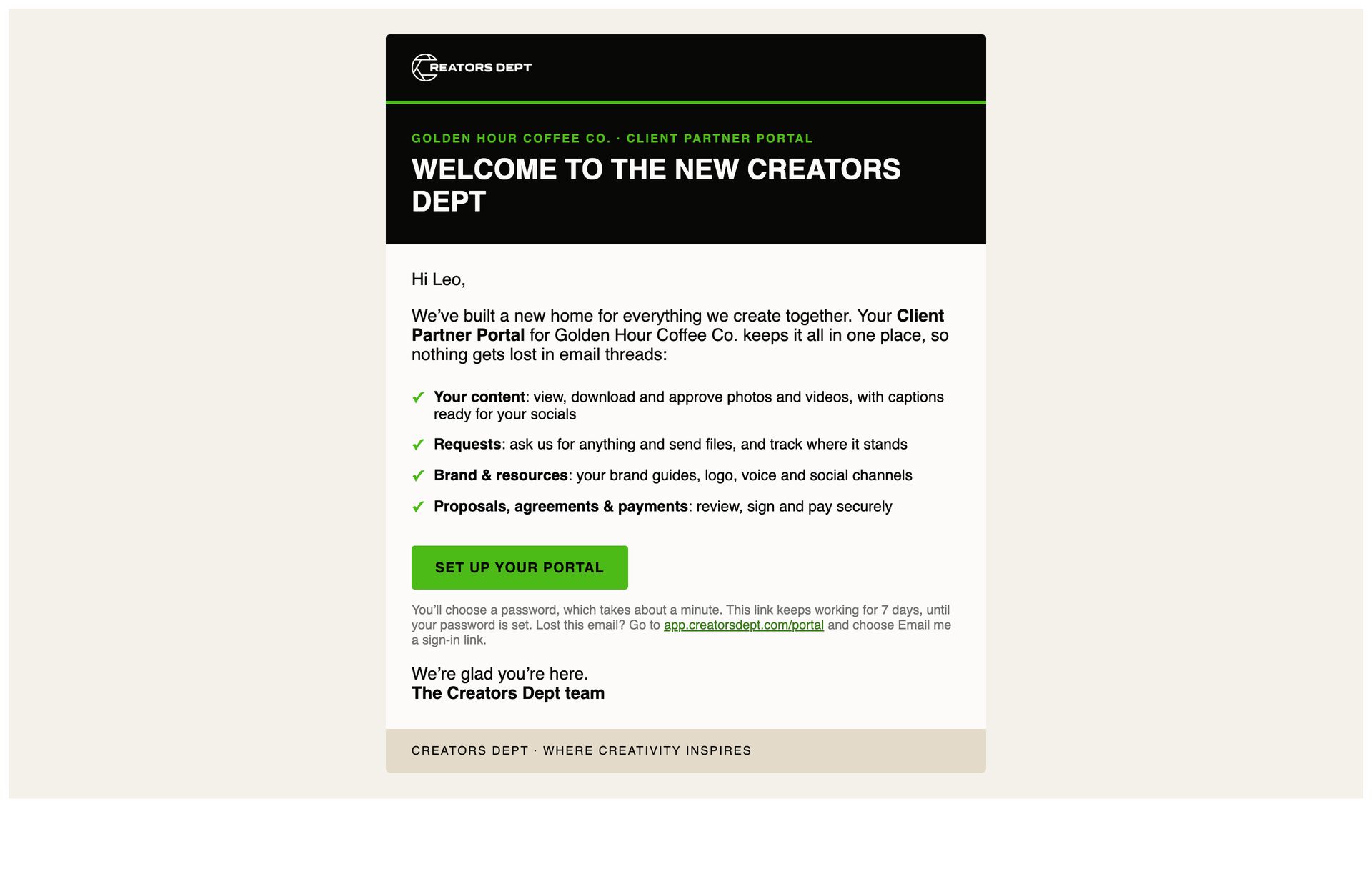
- Click Set up your portal.
- Type a password of at least 10 characters twice and click Save password and continue →.
- If you'd like to sign in with your Google account, click Connect Google. Otherwise click Skip for now. You can connect it later from Your profile. We only ask Google for your email address.
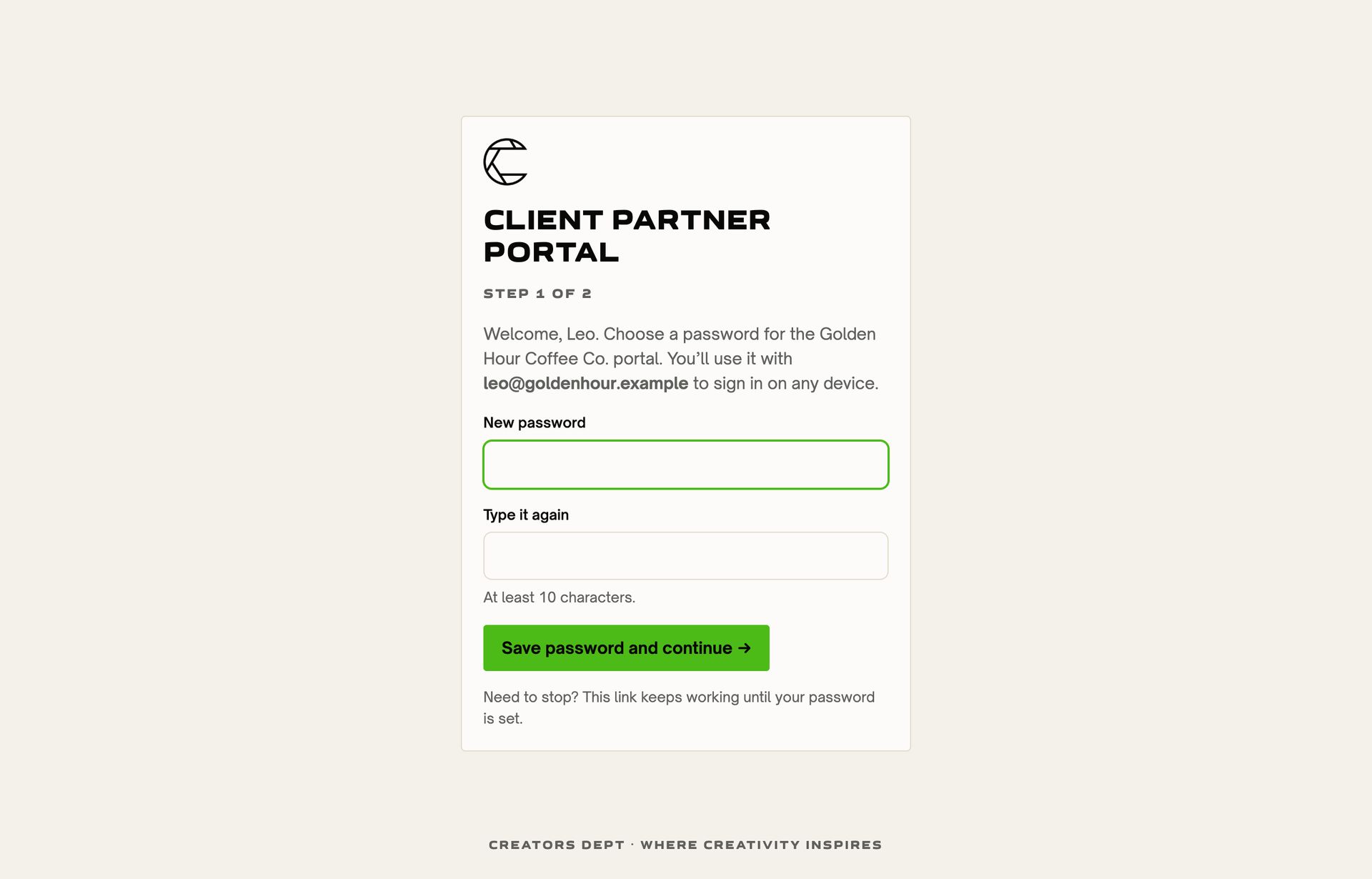
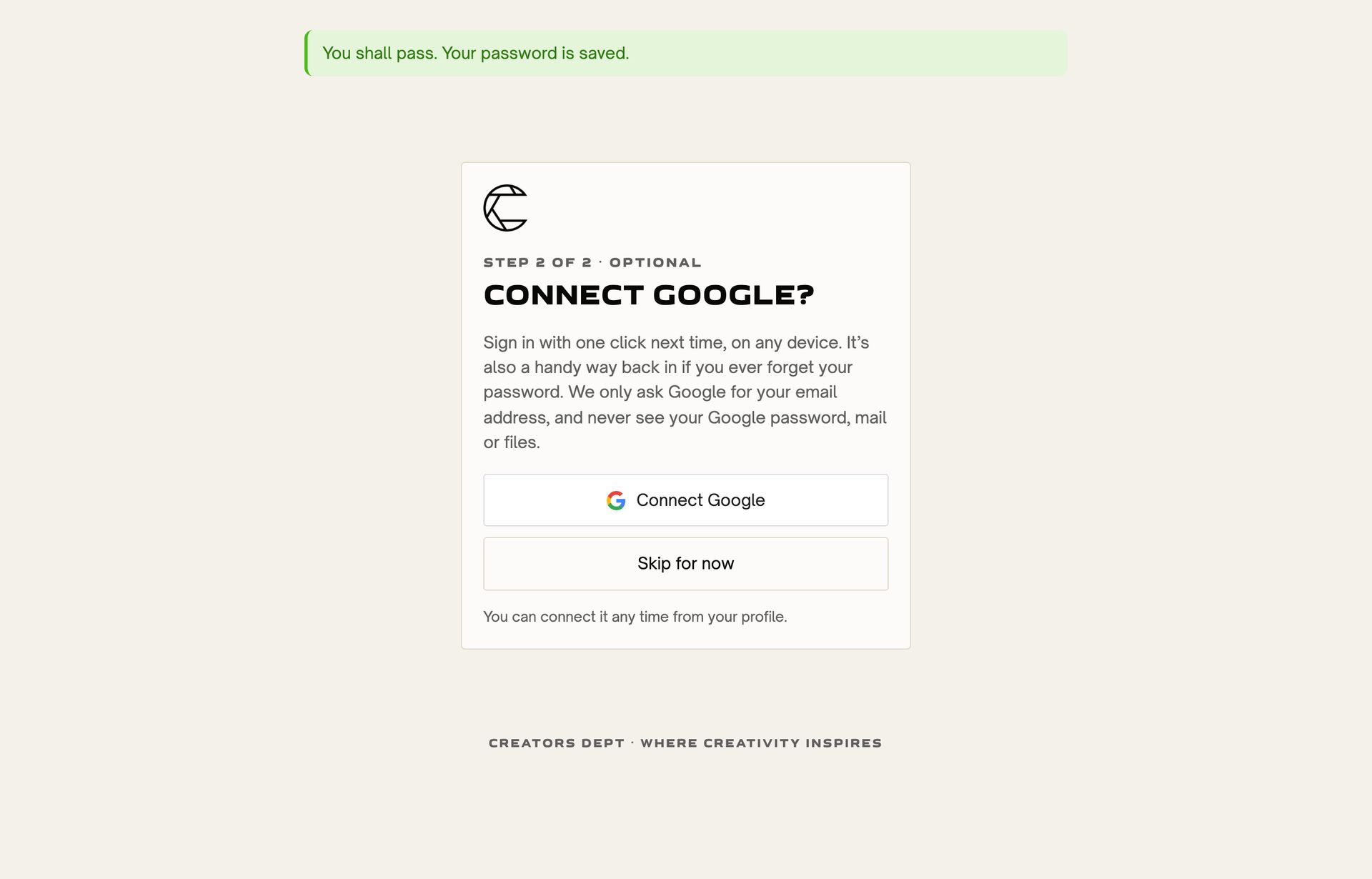
Had to stop partway? Just click the link in the email again. It keeps working for 7 days, until your password is set.
Next time, go to app.creatorsdept.com/portal and sign in with your email and password, or click Continue with Google. No password yet, or forgot it? Click Email me a sign-in link instead. If you're still setting up, the link lasts 24 hours and walks you through choosing a password. Otherwise it expires in 30 minutes. Ended up on a page that just says Sign in, next to Your creative department, all in one place? That's our team's page; click Sign in to your Client Partner Portal below the form, or sign in right there with your portal email and password.
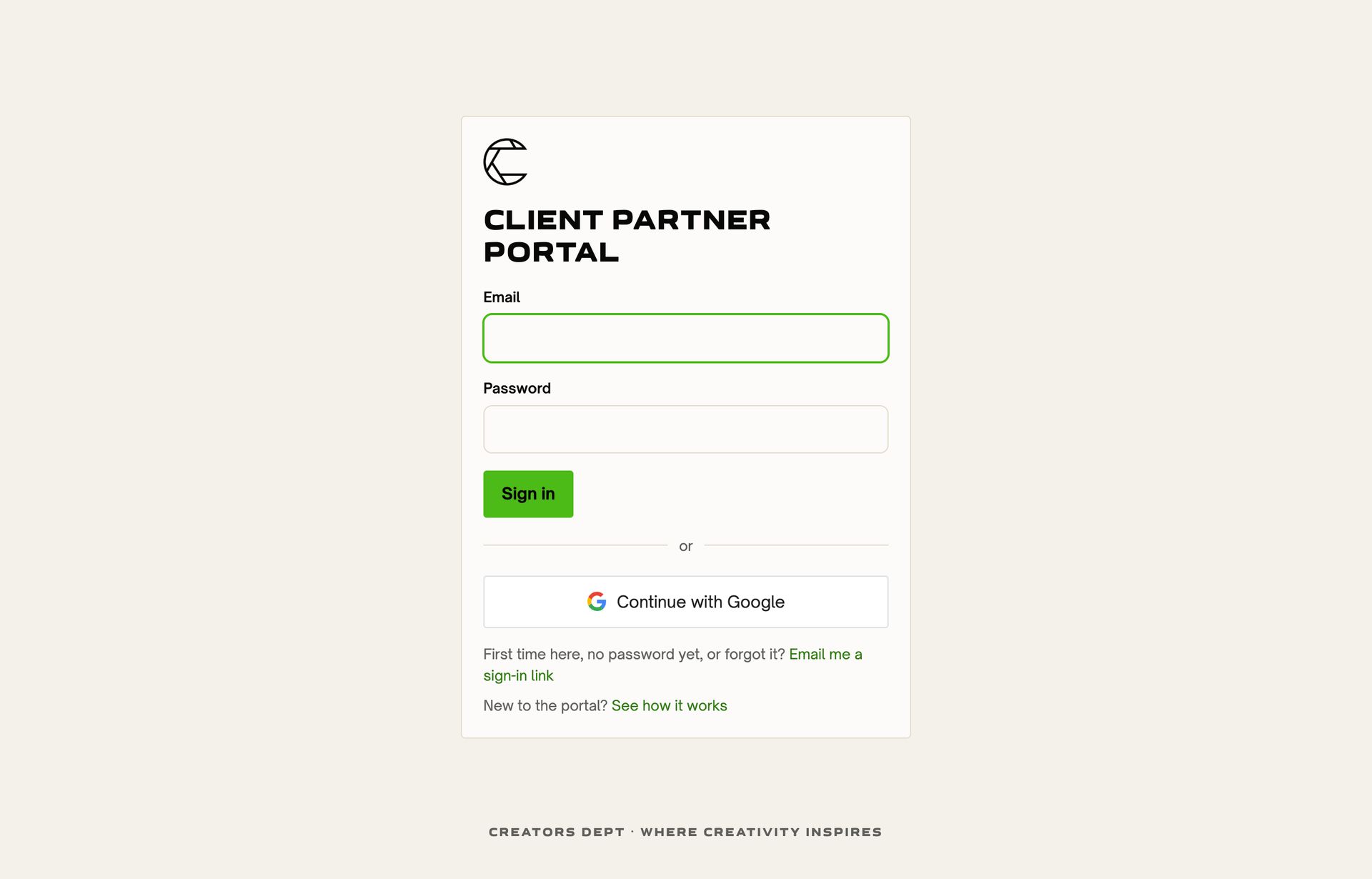
Invitation expired? Go to app.creatorsdept.com/portal, click Email me a sign-in link and enter the same email address. We'll send a fresh link so you can finish setting up.
02 Find and download your content
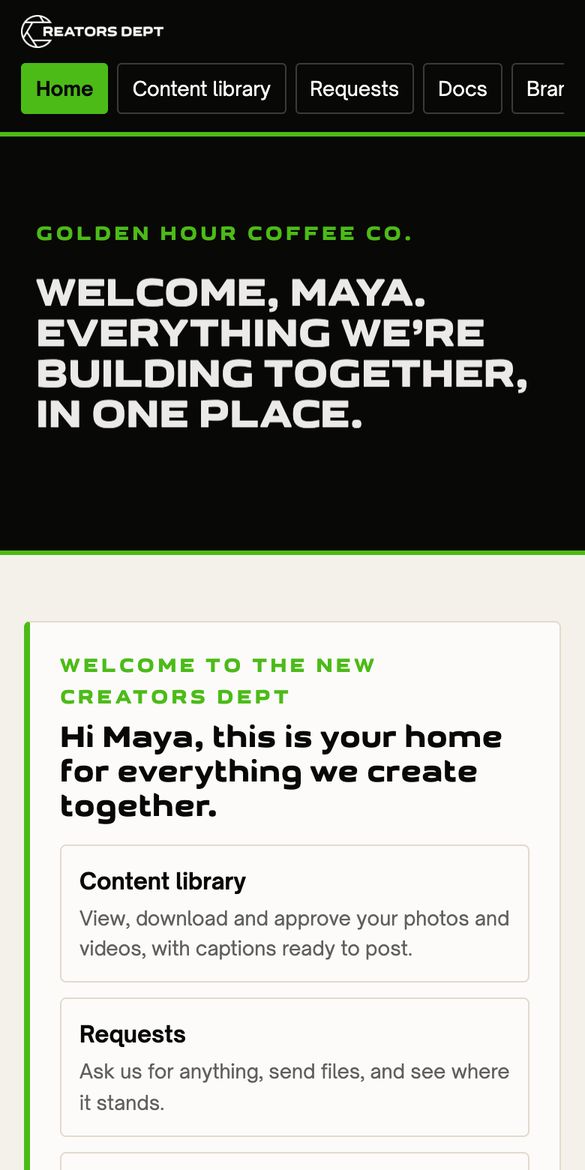
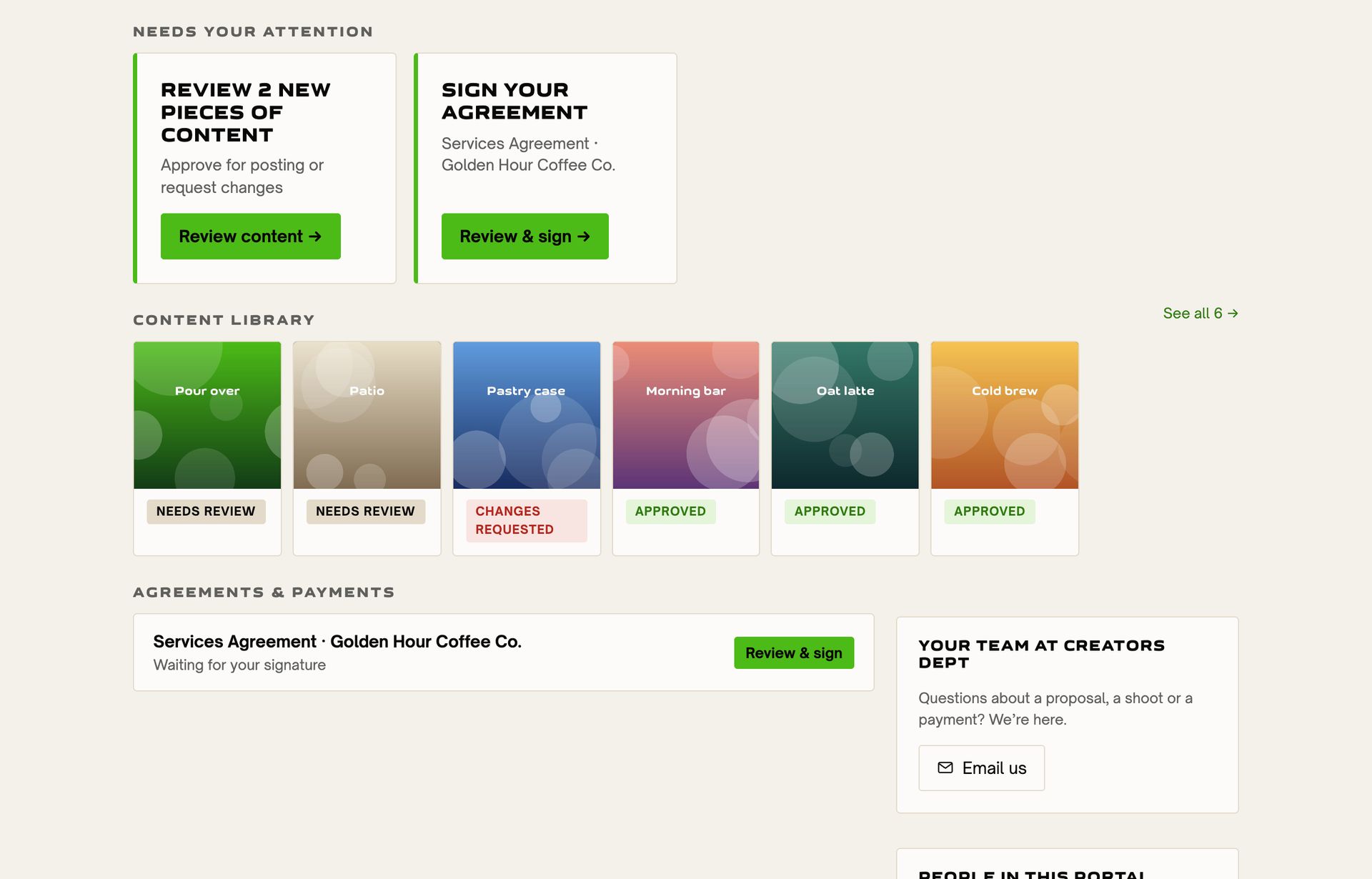
Your portal home shows what needs you under Needs your attention, and your newest content just below it.
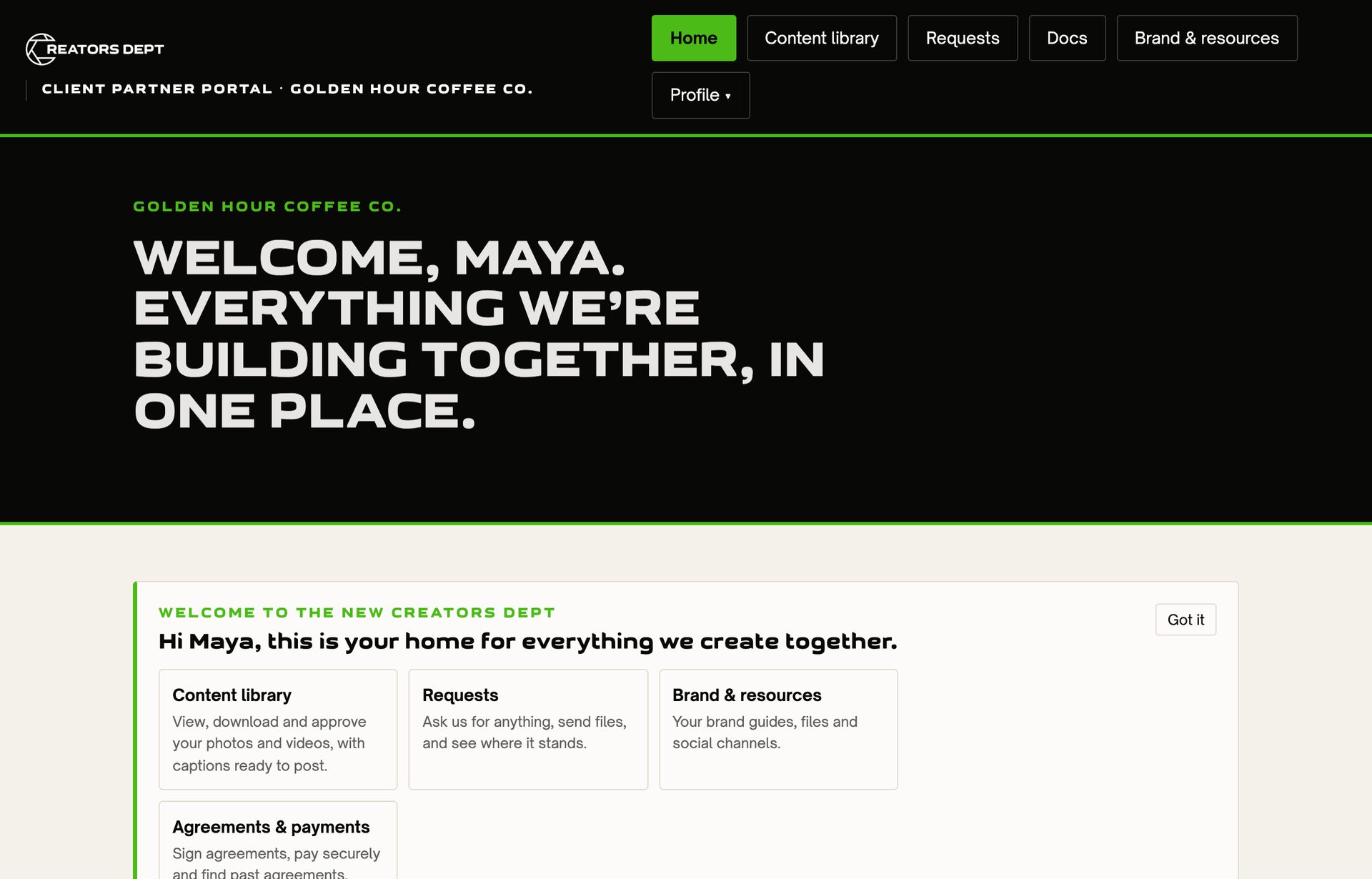
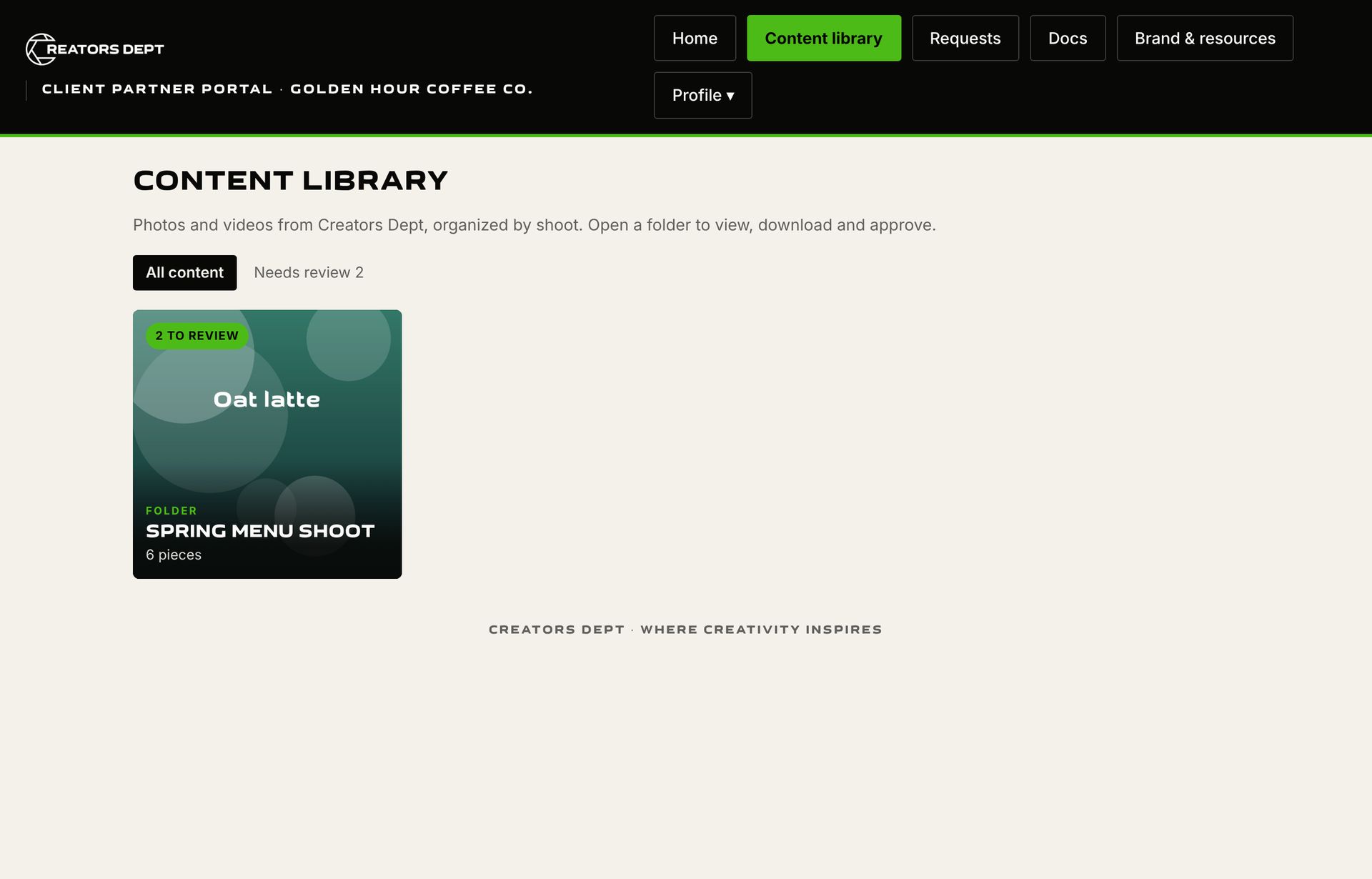
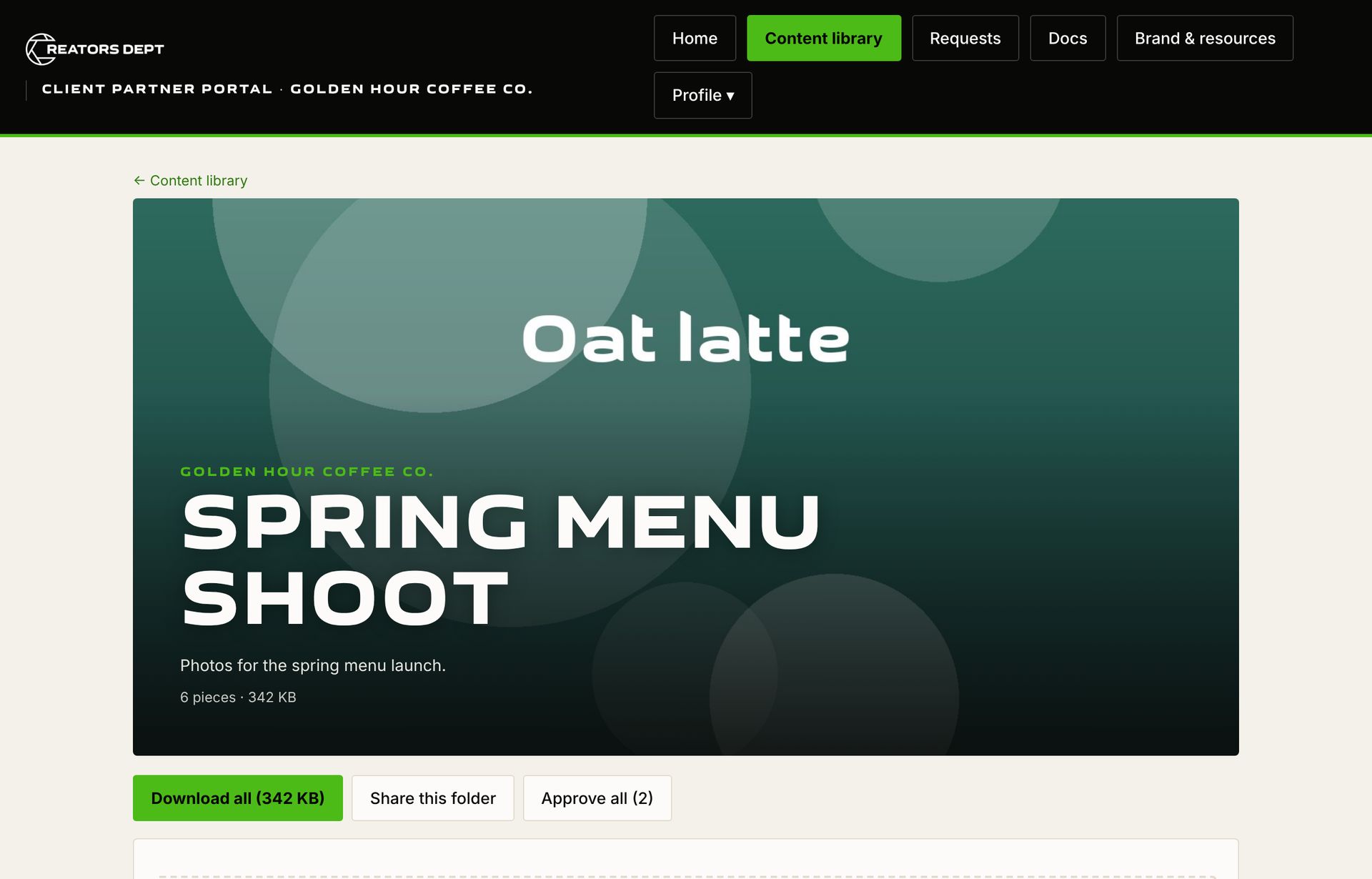
- Click Content library in the menu at the top. Your content is organized into folders, one per shoot or project. Click Needs review to see only what's waiting on you.
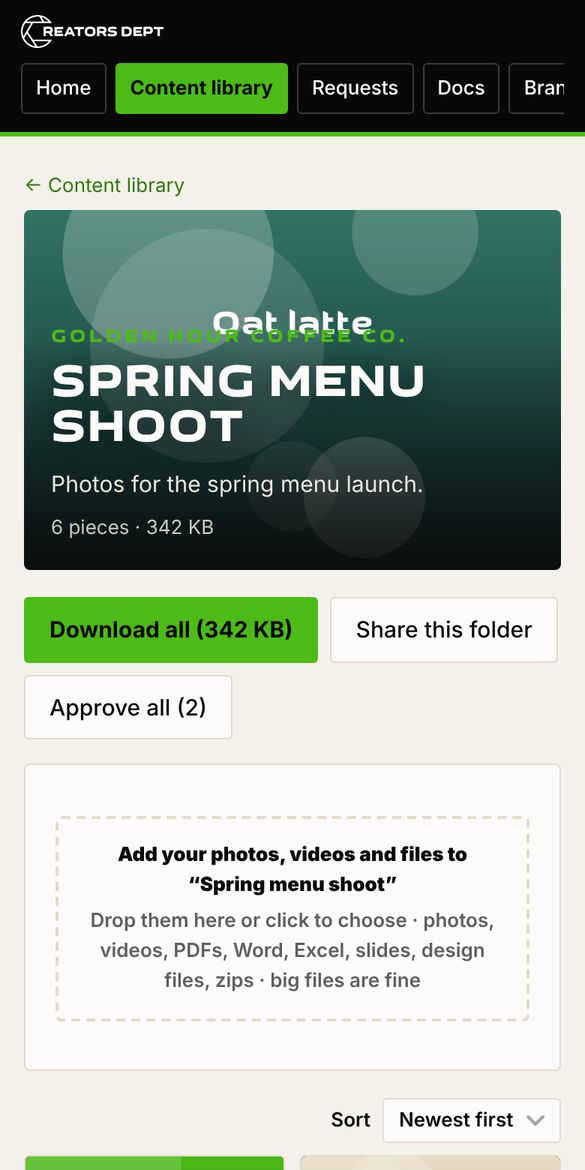
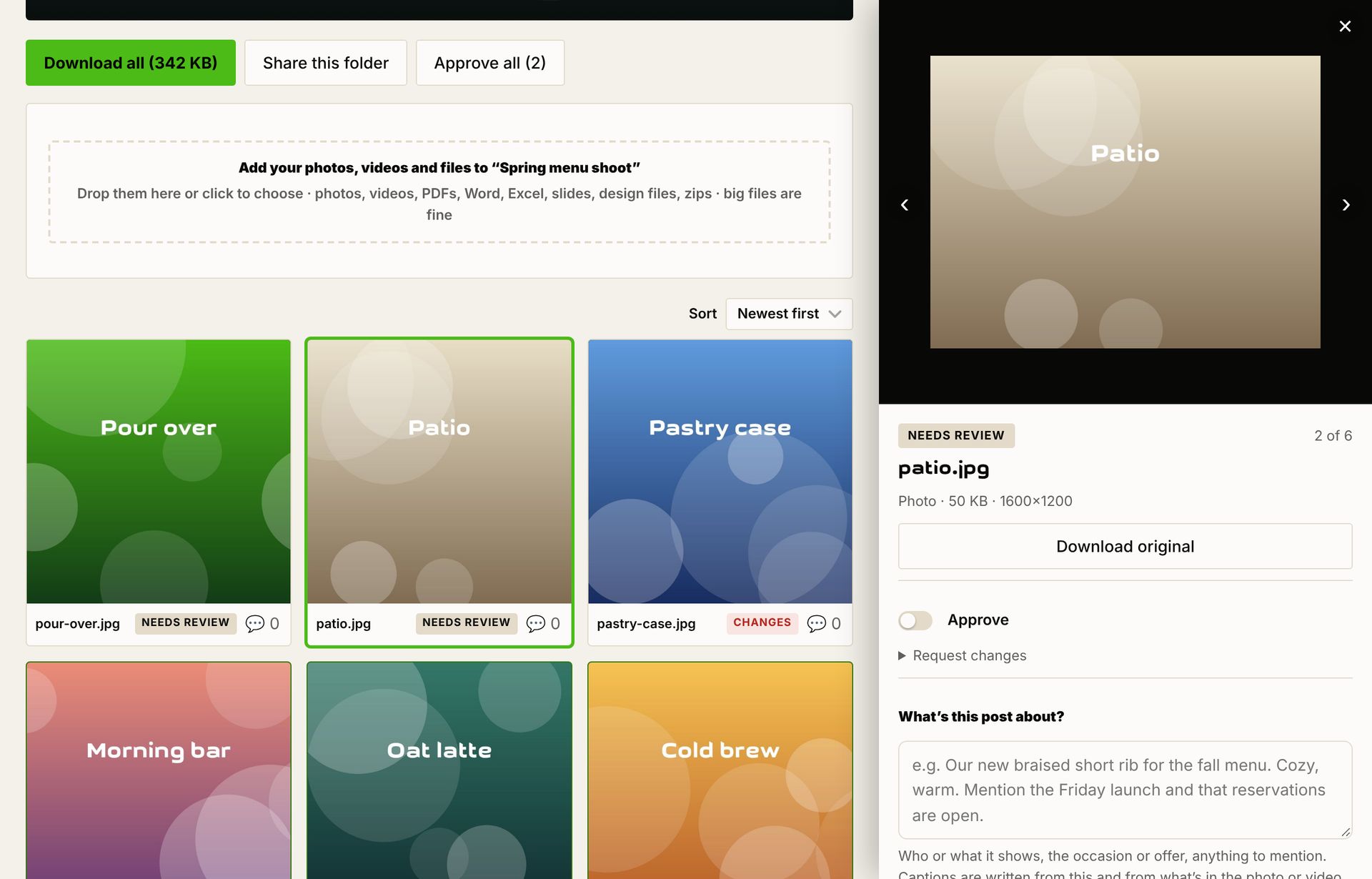
- Open a folder. Each piece shows its name, where it stands and 💬 how many comments it has. Click one to see it full size with its details beside it (a PDF opens right there to read), and use the ← → keys or arrows to move through the folder. Sort shows pieces newest first, oldest first or by name.
- To download, click Download original while viewing a piece, or Download all at the top of the folder to get the whole folder at once.
03 Find older content in your Archive
Older folders and pieces may move to the Archive tab in your Content library. Nothing is gone: you can still view and download all of it. Ask us if you'd like something moved back.
04 Approve content or request changes
When we ask for your approval, you'll get an email with your own link. It opens just that folder with no sign-in, and you can approve, request changes or comment right there. It's only for you, because what you do goes on record under your name, so please don't forward it. In your portal, you can do the same:
While viewing a piece:
- Happy with it? Turn on Approve.
- Happy with everything? When a folder has a few pieces waiting for you, Approve all at the top approves them in one go.
- Want something different? Click Request changes, tell us what you'd like changed, and click Send feedback.
- Just a note? Type it under Comments and click Post.
Want someone in particular to see a comment? Type @ and pick their name, a coworker or someone on our team, and they're emailed a link straight to it.
We're notified either way, and each piece shows its status: Needs review, Approved or Changes requested.
Documents work the same way. When a PDF, Word file or other document needs your sign-off, it says Needs review: click it to read it (PDFs open right beside your folder; other files download), then Approve it or Request changes. Your approval is recorded under your name.
05 Send a request and attach files
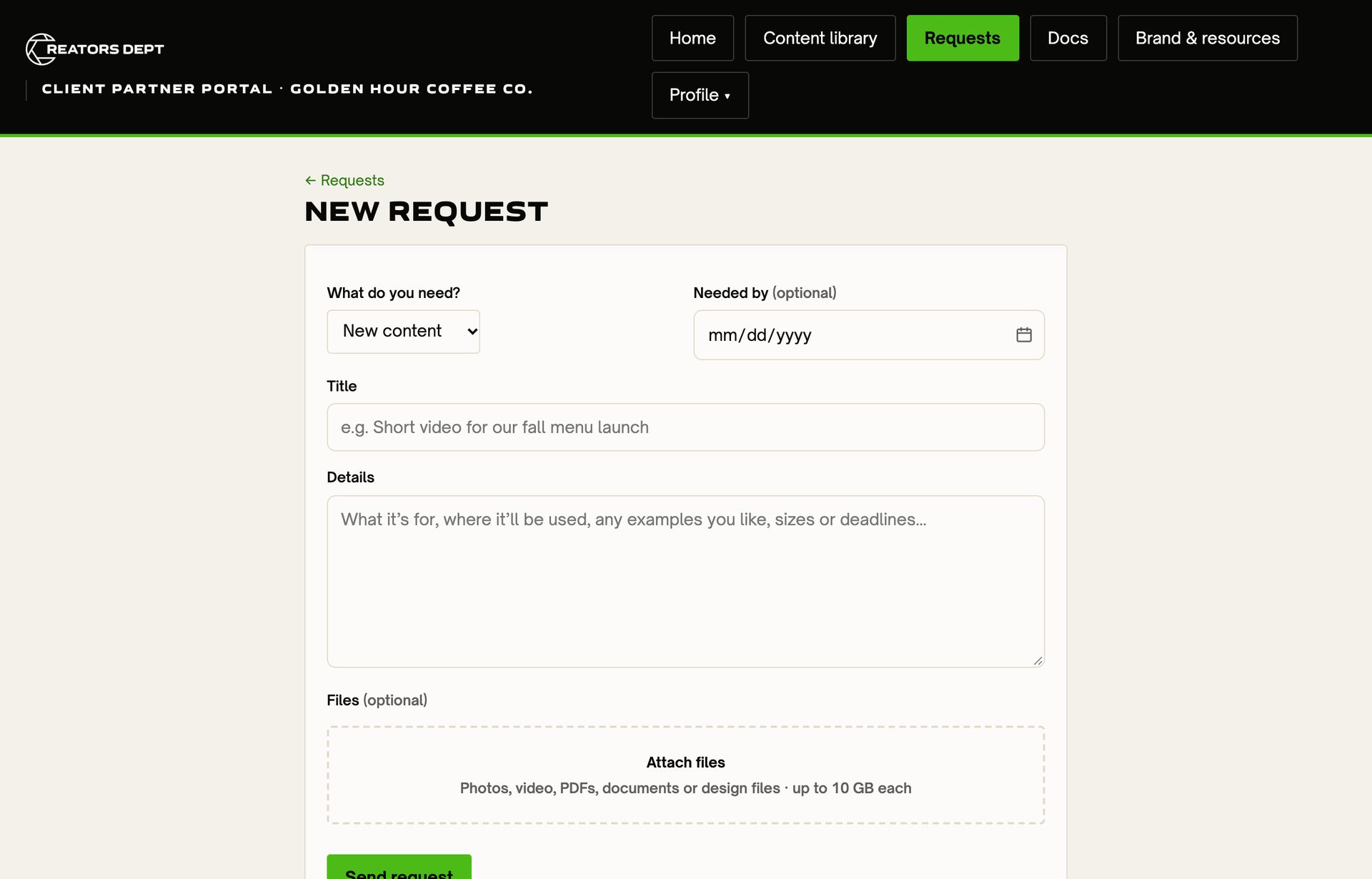
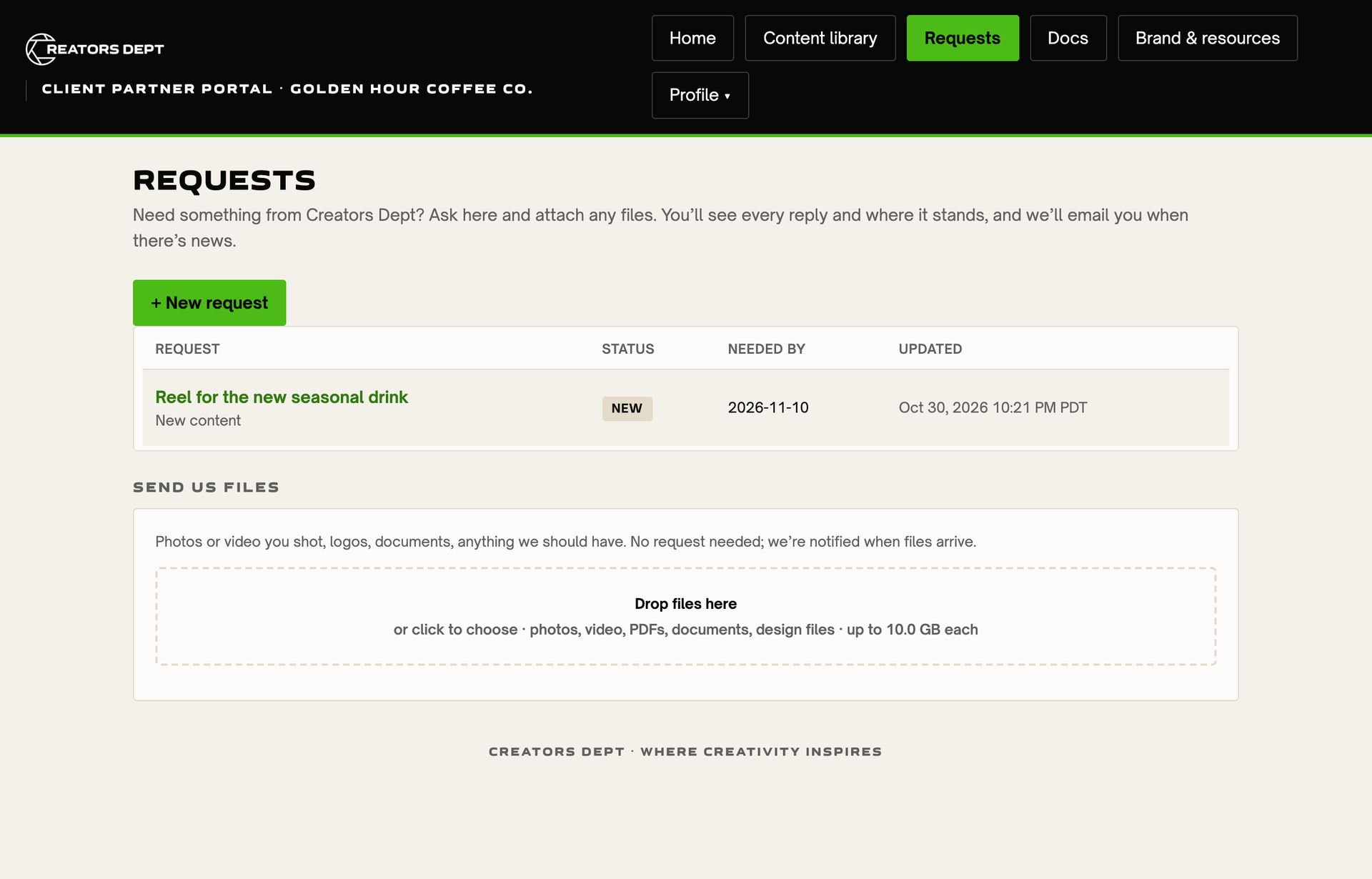
Need new content, an edit, a design, or just have a question? Ask in Requests.
- Click Requests, then + New request.
- Choose what you need, add a Needed by date if there is one, and give it a Title and Details.
- Under Files, click Attach files (or drag them in), then click Send request.
If you ask us for something by phone, text or in person, we may add it here for you, so you can follow it the same way. You'll see every reply and where each request stands (New, In progress or Done), and we'll email you when there's news. When we send files with a reply, they show right in the conversation (and PDFs come attached to the email): click one to view it, and if it needs your sign-off, approve it or ask for changes there. They're saved in your content library too. To send files without a request, drop them in Send us files on the Requests page.
If a content folder shows an Add your photos, videos and files box, you can upload straight into that folder too.
When we need something from you
Sometimes we'll ask you for something: files, an approval or a quick answer. You'll get an email, and it shows at the top of your Requests page under We need from you (and on your portal home). Open it to reply or add files, then click Mark done. We're told right away.
Projects
For bigger jobs we may share a project with you: a list of steps showing who does what and how far along it is. Find it under Projects on your Requests page. Steps marked Yours are for you. Tick the circle when one is done, and we'll pick up from there. We'll email you when it's your turn, and again when the whole project is finished.
A project can have a Schedule with each shoot day's date, times, call time, location (with a map link) and notes. Days marked Tentative aren't set yet. Once we confirm a day, you'll get an email with a calendar invite (and a text, if your cell number is on your profile), then reminders two days before and the morning of. If a confirmed day moves or is cancelled, we'll let you know the same way. Once the crew and talent are set, you'll see who's coming and their roles under Crew & talent.
06 Find docs, brand files and agreements
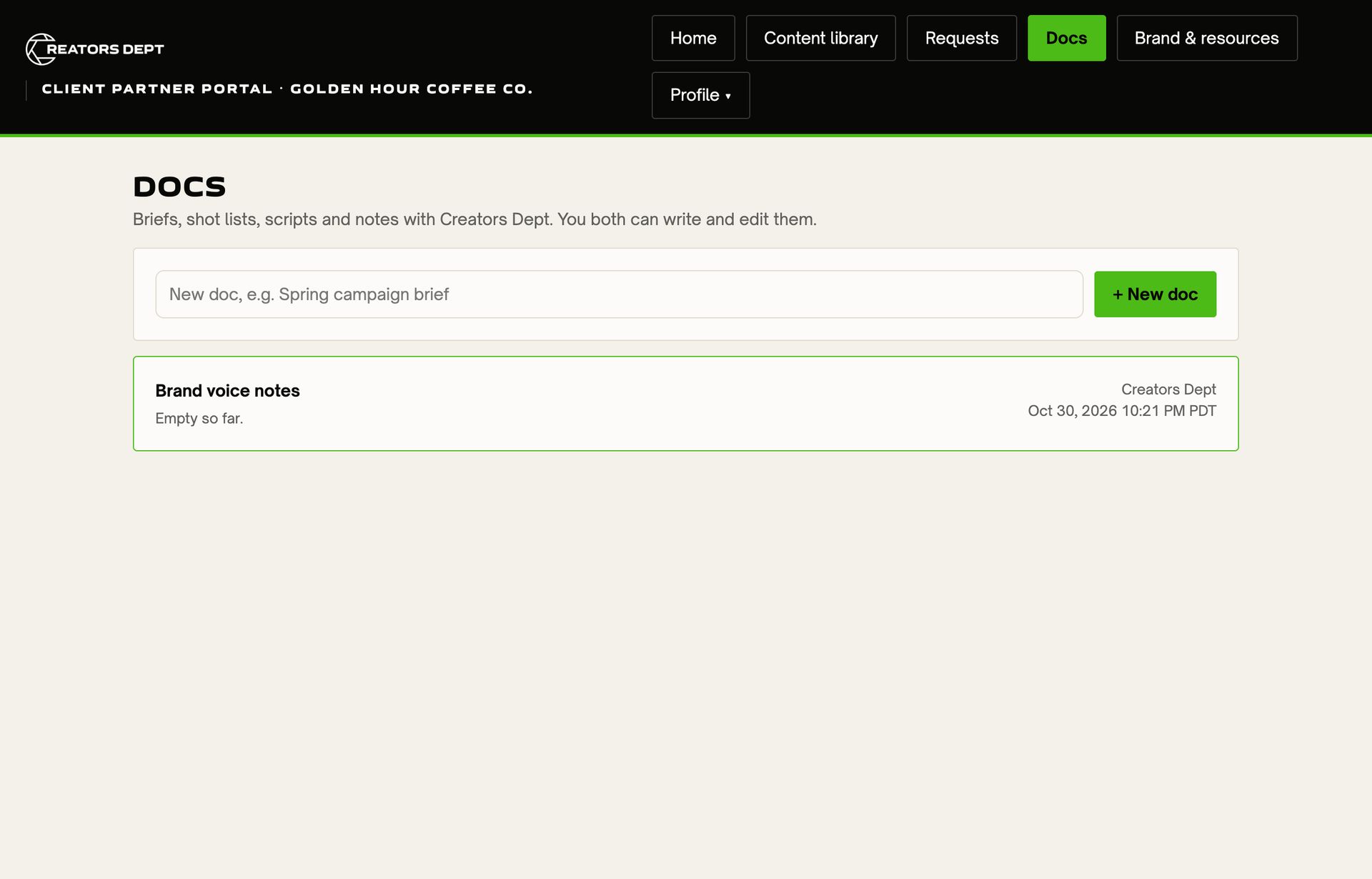
- Docs: briefs, shot lists, scripts and notes we write together. Open one to read or edit it, or click + New doc to start one. Each doc can be downloaded as a PDF.
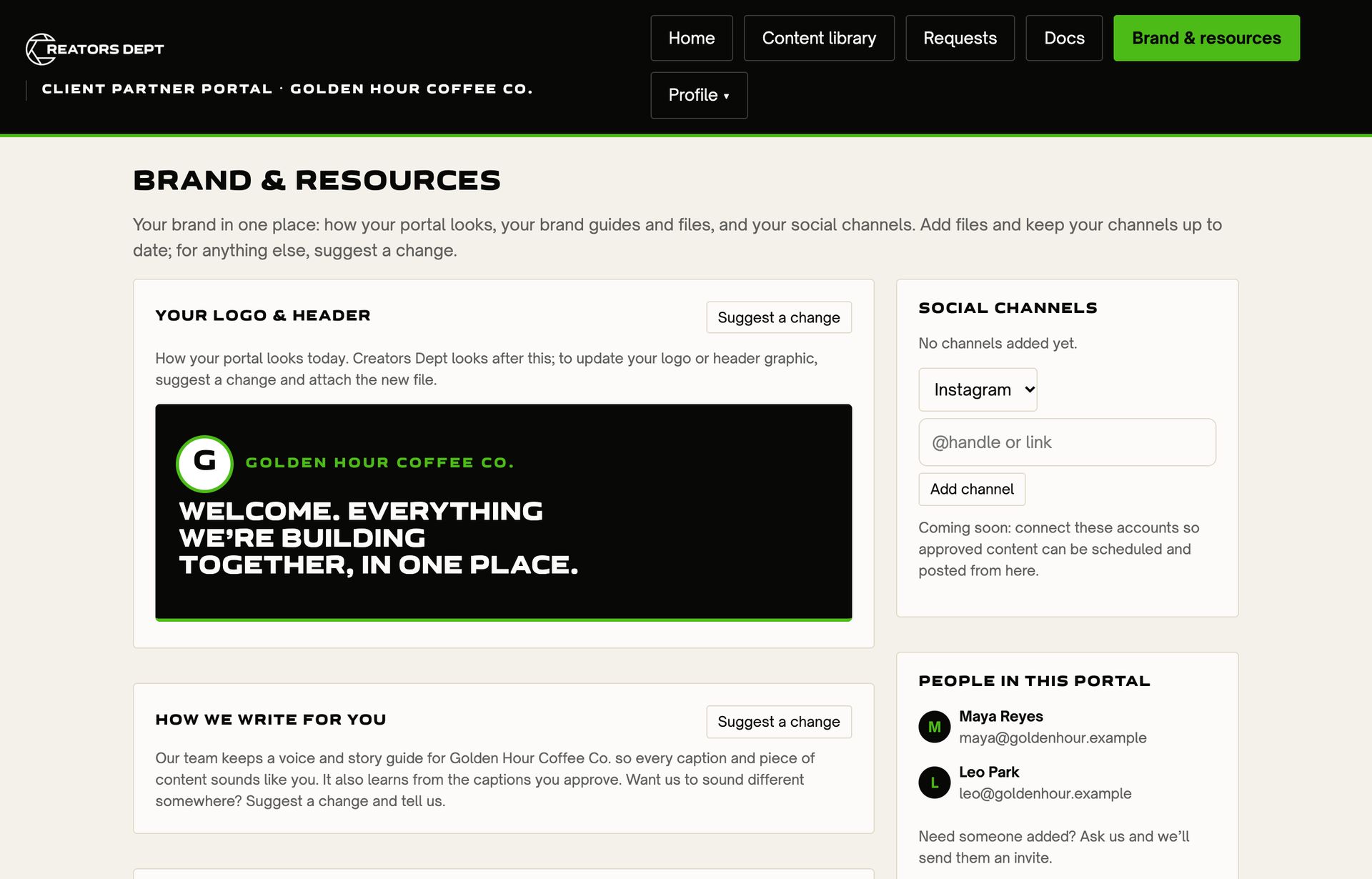
- Brand & resources: your logo, brand guides and files, and your social channels. Click Download on any file, drop in new ones, or click Suggest a change if something needs updating.
- Agreements & payments: on your portal home. Agreements waiting for you have a Review & sign button. Once signed, a PDF button gives you your copy, along with any agreements from before the portal.
- Invoices: when we bill you, you get an email and the invoice appears under Agreements & payments with a View & pay button. Pay securely by card through Stripe, and it shows as Paid with your receipt. On a monthly retainer, a new invoice arrives on the same day each month.
- Automatic billing: if your agency sets this up, you get an email with a link to add your card once through Stripe, and it's charged every month from then on. The first charge is explained on that page before you add your card. You get a receipt after each charge, and each one shows as Paid in Agreements & payments. To update your card or cancel, use Manage under Agreements & payments, or the link in any receipt. If you cancel, you keep the month you've paid for, with no refund, and nothing more is charged. If your card fails, you'll get an email and Stripe will try again, so just update your card; there's nothing else to pay.
These appear as soon as we've shared something with you. Until then, the page tells you it's empty.
07 Get help from our team
On your portal home, the Your team at Creators Dept card has an Email us button, and a Schedule a meeting button when booking is set up for you. You can also reply to any email we send you.
Need someone else from your business added to the portal? Ask us and we'll send them an invitation.
08 Optional: Sign an agreement
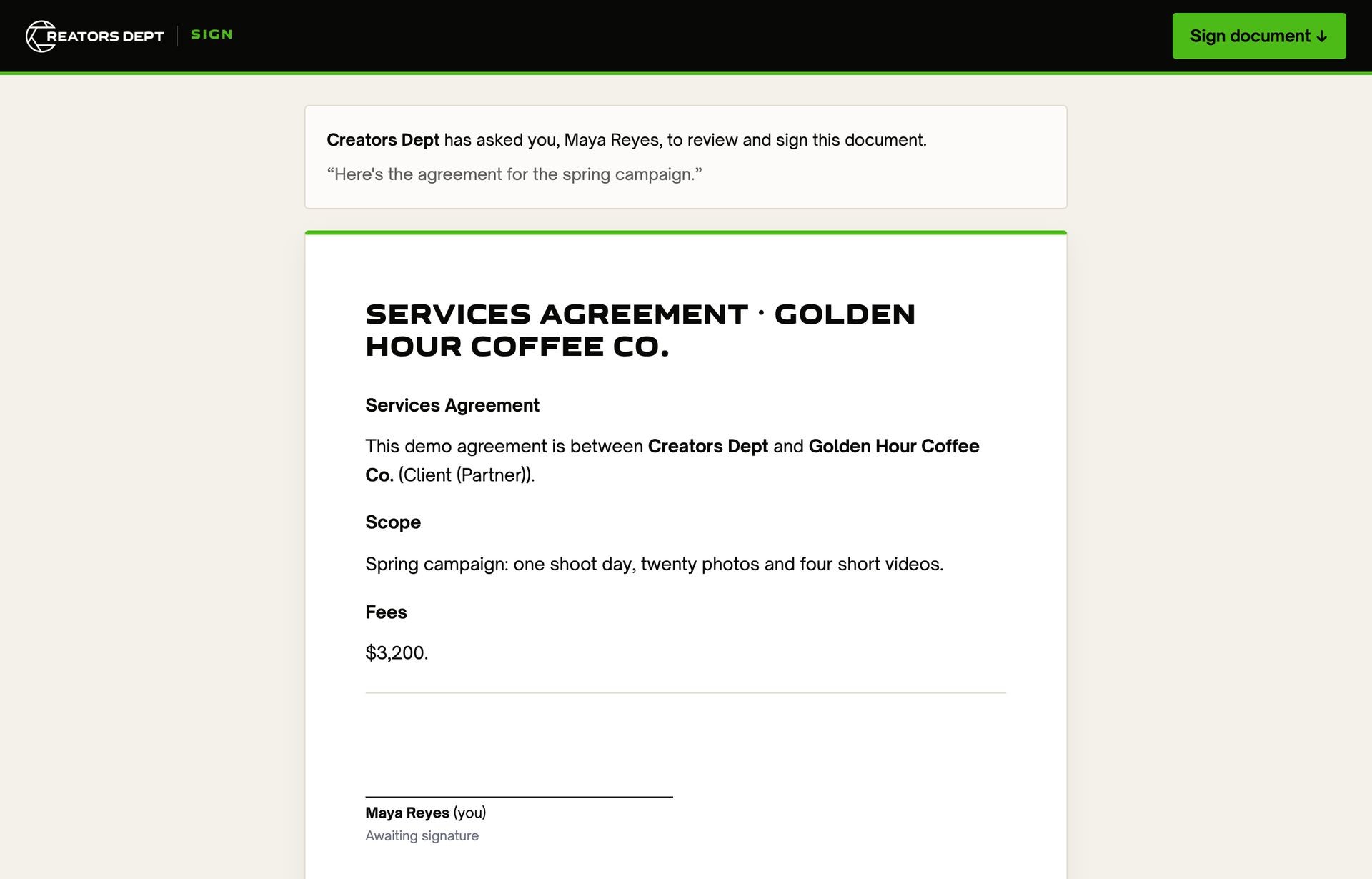
When we send you an agreement, it shows under Needs your attention and gets its own email.
- Click Review & sign and read it through.
- Click Sign document ↓, then Type or Draw your signature.
- Click Adopt signature & sign. Then click Download signed PDF for your copy. It's also kept on your portal home.
09 Optional: Proposals and deposits
Sometimes we'll send a proposal first. You'll see Review your proposal on your home page and get an email with a link.
- Open it, read it through, and click Select on the package you want, plus any add-ons.
- Enter your name and email and click Accept & review agreement →. Not the right fit? Click Pass on this proposal.
- Sign the agreement as above. If there's a deposit, you'll see Pay deposit. It's a secure card payment through Stripe, and it shows as Paid afterwards.
10 Optional: Connect your social accounts
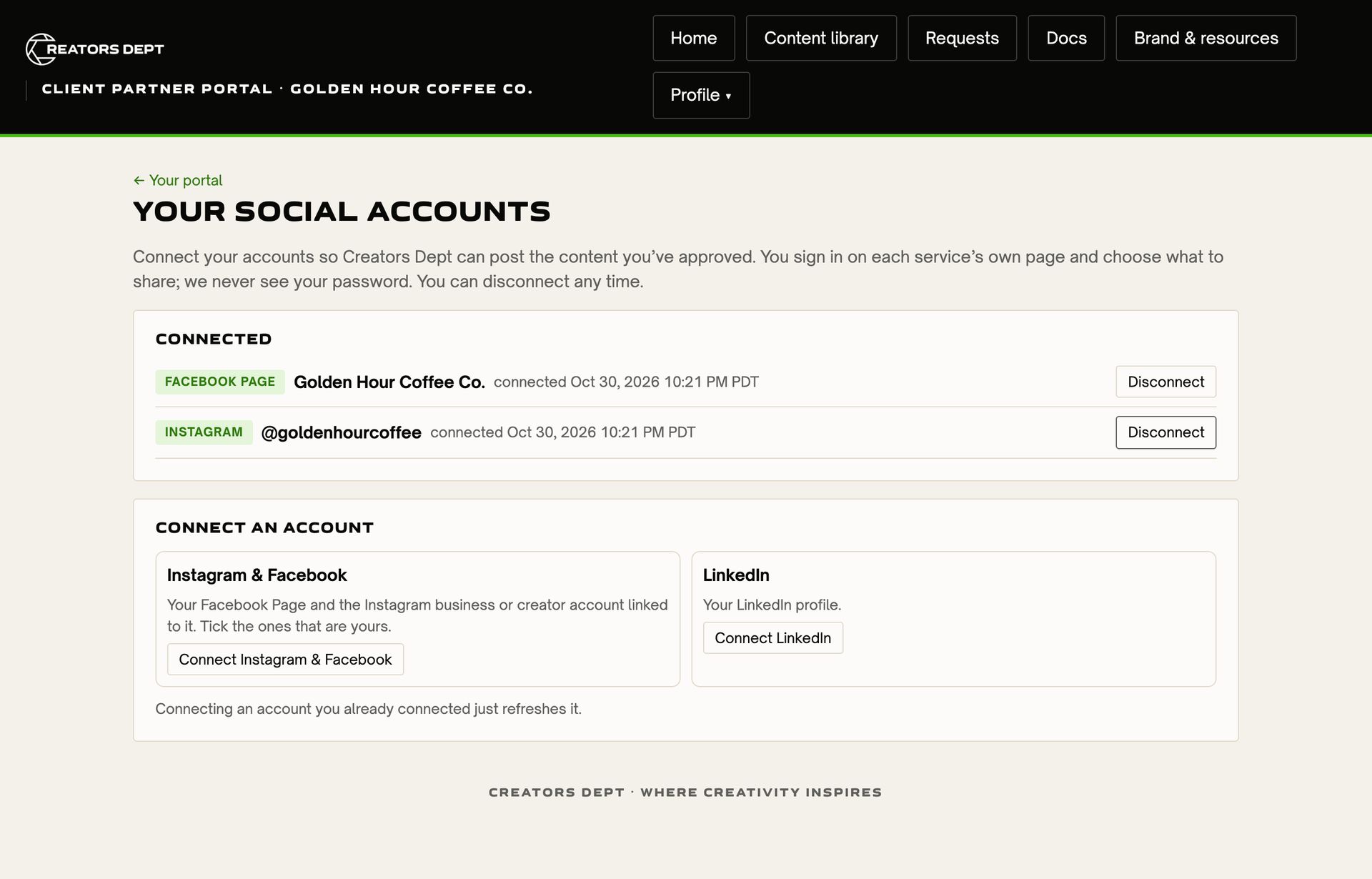
If your home page shows a Your social accounts card, we can post the content you approve straight to your accounts.
- Click Connect accounts (or Manage).
- Pick a service, such as Connect Instagram & Facebook, and sign in on that service's own page. Choose the accounts that are yours. We never see your password.
- To stop, click Disconnect next to an account. Any posts scheduled for it are cancelled.
11 Optional: Share a folder
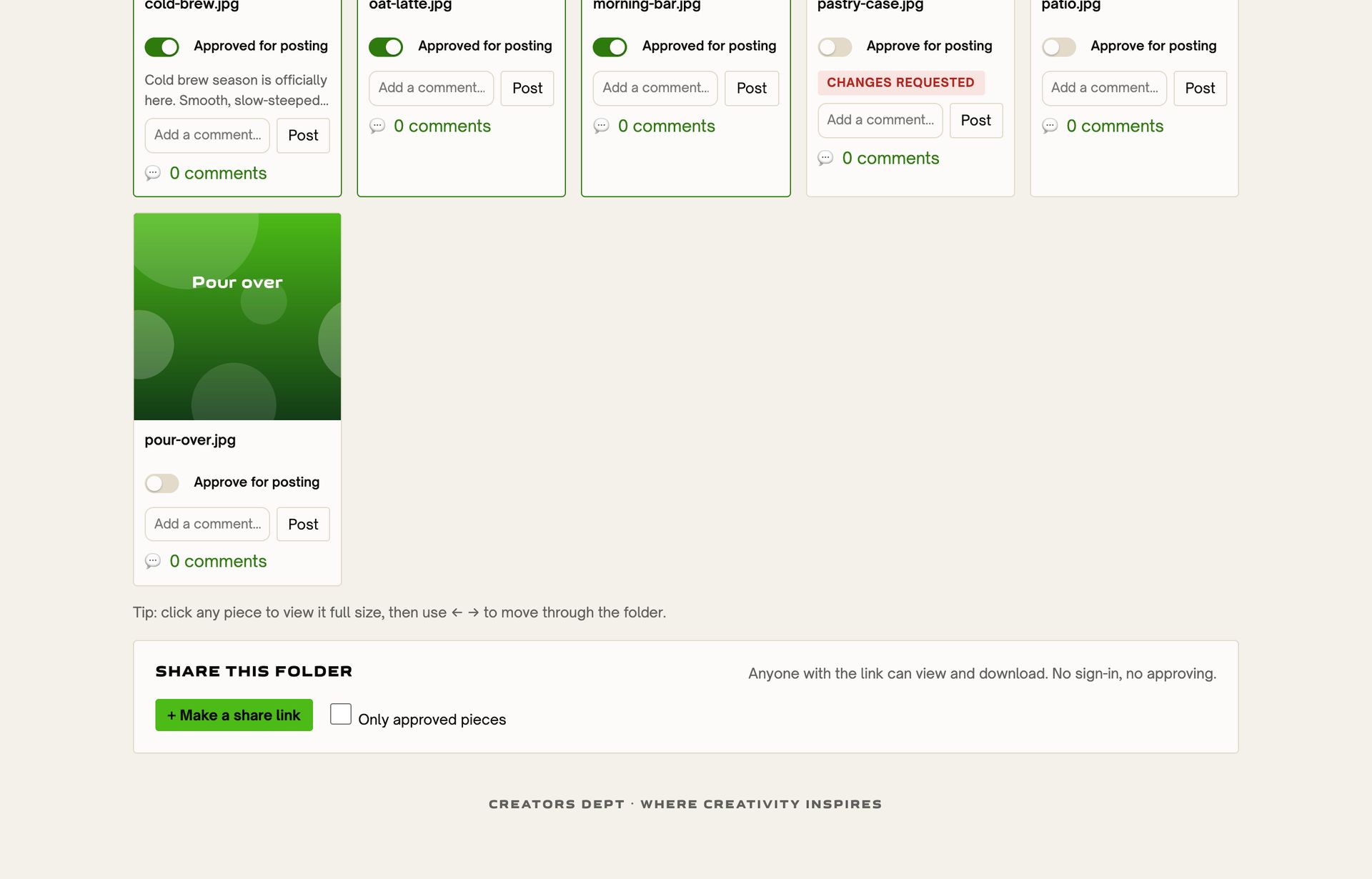
To show a folder to someone outside the portal, such as a coworker or a printer, open the folder and click Share this folder, then + Make a share link. Tick Only approved pieces to leave out anything still in review. Tick Allow comments if you'd like them to be able to leave a note. Anyone with the link can view and download, but they can't approve. To stop a link you made from working, click Turn off next to it.
12 Optional: Your profile and your phone
- Click Profile ▾ at the top, then Your profile, to add your title, phone numbers, website and links, to change your password, or to connect or disconnect Google. Sign out is in the same menu.
- The 🌙 / ☀️ button at the top switches between light and dark. In Your profile, Appearance also offers System, which follows your phone or computer.
- The portal works in your phone's browser. Swipe the menu bar sideways to reach every page. Add it to your Home Screen for one-tap access.